5.2 Client Portal Booking Guide
Your Login User type is Client.
Your Client Username and Password is provided by Admin.
Admin will also provide you a link where you can access the login page similar to the screenshot below.

Once login Your Details Page is displayed,
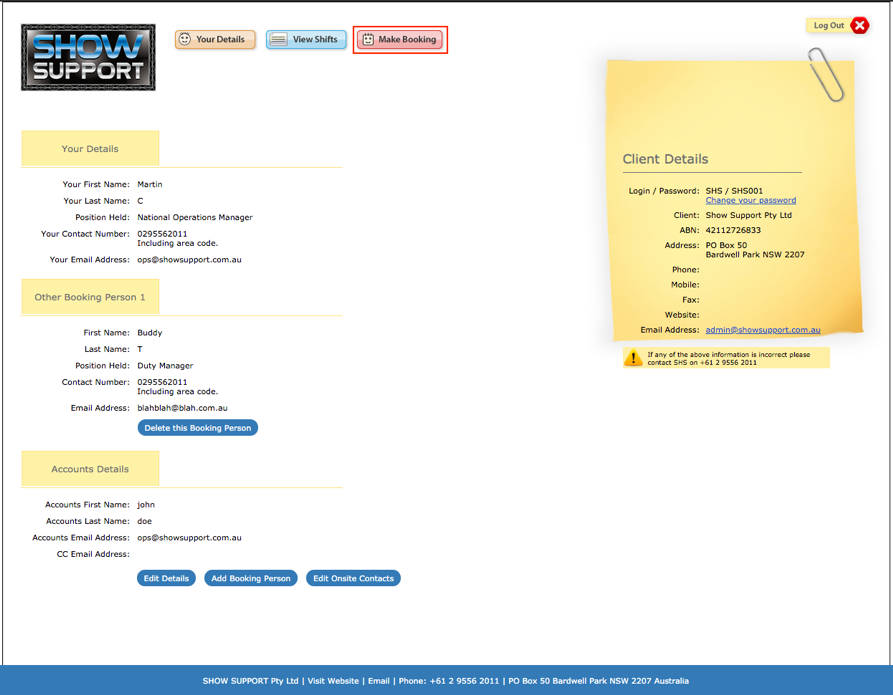
Click on Make Booking button to open the Step 1:
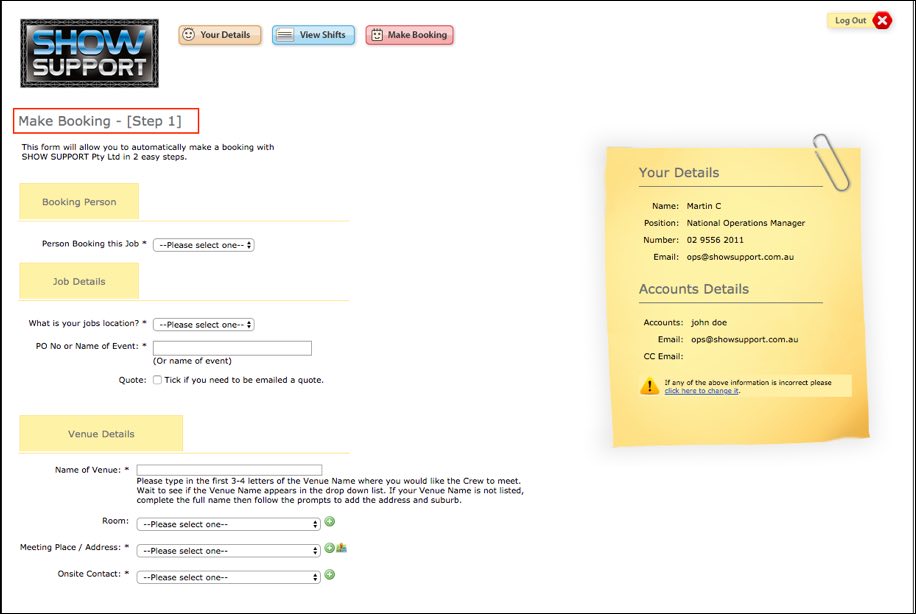
On Make Booking Step 1 page fill in all the mandatory fields:
Person Booking this Job *
What is your jobs location? *
PO No or Name of Event: *
Name of Venue: *
Meeting Place / Address: *
Onsite Contact: *
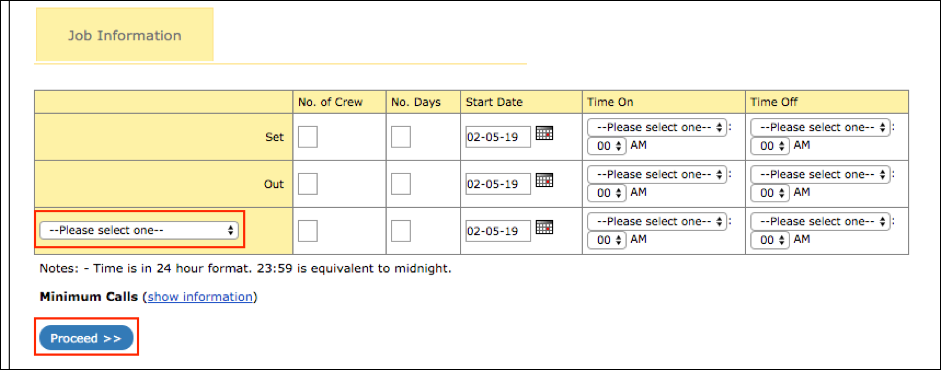
Job Information: Select the available activities on the Please Select one options, no crews, days, booking date, time on and time off and select Proceed to open Step 2 page.
Step 2 Page:
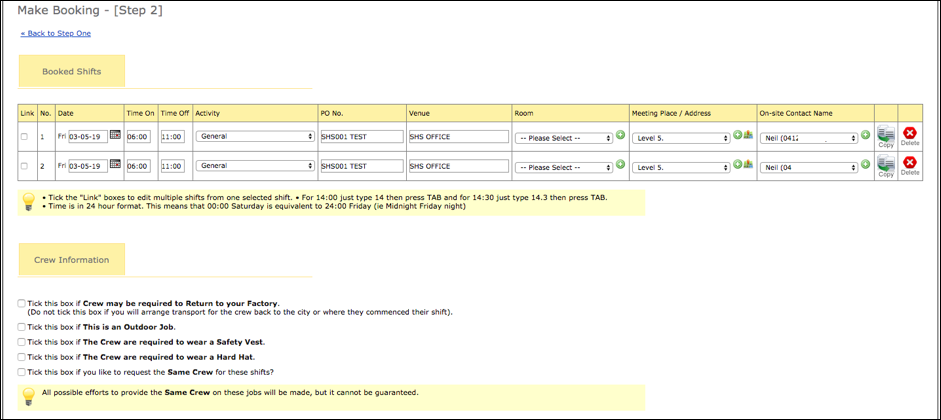
Review and confirm your booking information are correct.
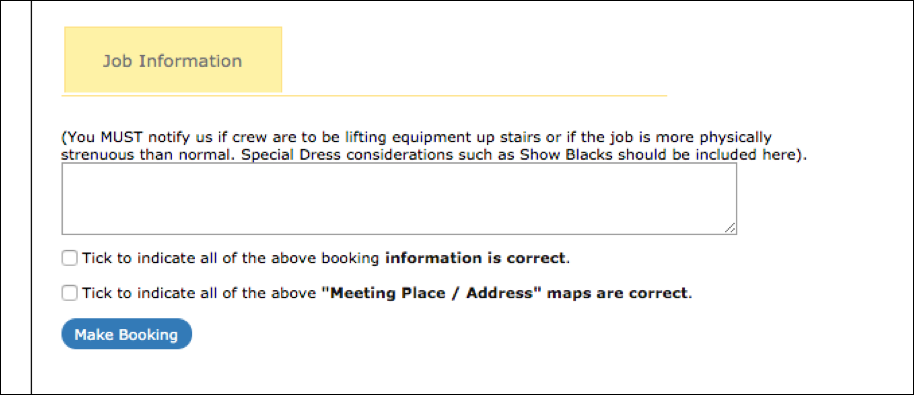
Insert any note under the Job information text box, check the 2 tick box and click the Make Booking button.
Tick to indicate all of the above booking information is correct.
Tick to indicate all of the above “Meeting Place / Address” maps are correct.
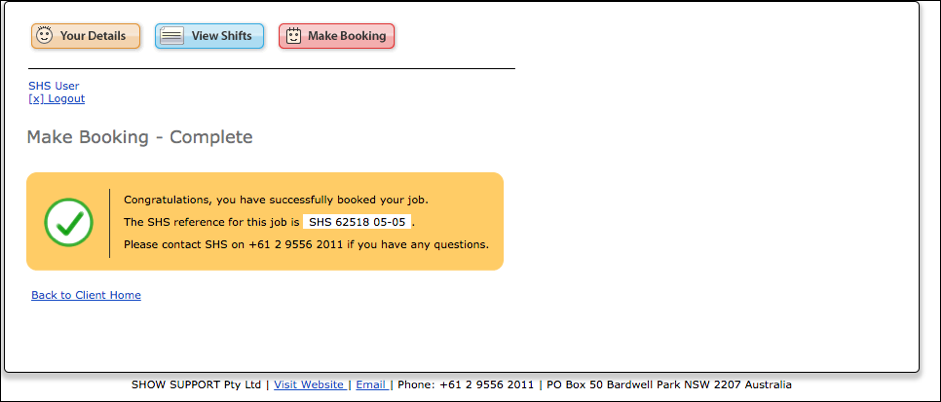
Finally Make Booking Complete page is open with your booking reference number.